Boomorph

AI Outfit Changer

Try a different outfit on your photo. Upload a person and the clothing you want to try.

Your photo

One person, clear lighting, and a visible outfit.

Clothing photo

Use a clear product shot or a photo of clothing on a person.

Adjust try-on settings
Total: —

Your fitting room

Your try-on result appears here

Add both photos to get started. AI previews can differ from real fit, size, color and fabric.

Sign in to generate

Sign in here to keep your selected photos in place. Closing this window does not remove them.

Review our policies before continuing: Terms · Privacy

How to prepare an AI outfit change

  1. 1. Add your photo

    Use a well-lit photo of one person with the outfit area visible. A relaxed, unobstructed pose gives the clothing reference more room to work. You can inspect and replace the image before signing in.

  2. 2. Add the clothing

    Choose a clear garment photo: a flat lay, a product image, or clothing worn by a model. Match the category to the garment you want to change. Start with one item rather than an entire layered look.

  3. 3. Preview the result

    Check both images, choose the visible settings, and review availability. When generation is enabled, sign in without leaving your photos and check the credit quote before sending a request. The current preview lets you prepare photos only.

An AI outfit changer starts with your own reference

A garment can look appealing on a product page and still be difficult to picture with your own proportions, pose, and everyday style. An AI outfit changer gives that question a visual starting point: one person photo, one clothing reference, and a focused change to explore. Start with a familiar portrait and a garment you actually want to consider. You do not need to invent a long prompt or choose a different person before preparing the images.

The useful difference is control over the reference. Rather than selecting a generic style name and hoping it describes the right item, you choose the clothing photograph. The visible controls let you identify a top, bottoms, or a one-piece outfit, describe how the garment was photographed, and choose how many variations to request when the service opens. Keeping those decisions together makes it easier to understand what changed between attempts instead of guessing which hidden setting was responsible.

You can begin with the photo preparation workspace above without making an account. Replace an image, inspect the preview, and decide whether the two references are suitable. Generation is a separate step with its own availability, consent, sign-in, and credit checks; it is not currently open in this preview. If you want to prepare an account for a later session, use My account in the navigation. Preparing photos does not commit you to a purchase or silently submit them for processing.
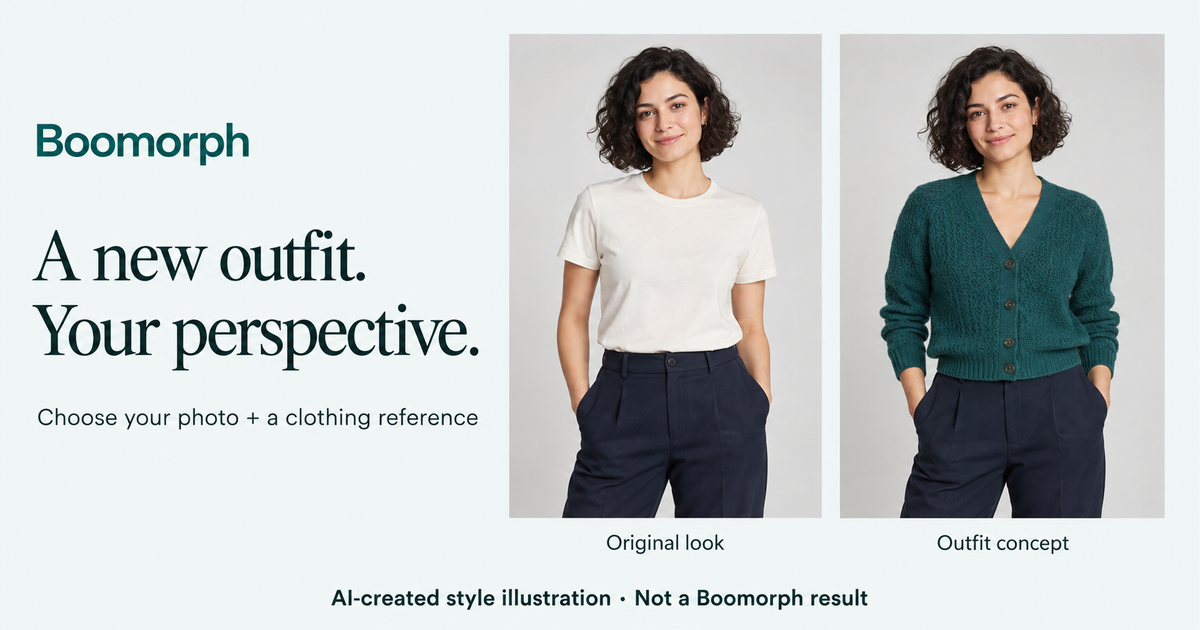
What to inspect in an AI outfit change

Illustration of one fictional adult in a cream T-shirt and a teal cardigan, clearly labelled as a concept rather than a product result.
AI-created style illustration. These images explain a clothing concept; they are not Boomorph or FASHN output evidence.

Keep the person as your reference

Use the same person photo when comparing clothing ideas. Look closely at the face, hands, pose, and surrounding objects before accepting a result. Identity preservation is a review goal, not a promise that every pixel will remain unchanged.

Look beyond the overall color

Check seams, knit texture, prints, buttons, and edges against the garment photograph. Small details can change during AI synthesis. A convincing overall look still needs a careful close-up review before you share it or use it to describe a real product.

Start with a flat lay or a model photo

You do not need a garment cutout to select a reference. A clear flat-lay product photo and a model photograph provide different clues about shape and drape. Choose the matching photo type and keep the item easy to distinguish from its background.

Make your clothing photos useful before you generate

Choose a photo that shows the change you want

For a top, include the shoulders, torso, and waist rather than a tight face crop. For trousers or a skirt, show the lower body and avoid hiding the waistband behind a large bag. Use one clearly visible person. Arms folded across the chest, a coat over the target garment, or an extreme camera angle can hide the very area you want to change. A clear image helps you judge the reference even before any AI processing is available. Keep your original photograph so you can compare the person, background, and lighting later.

Give the garment its own clear reference

Choose the product image that explains the clothing most clearly, not necessarily the most dramatic campaign photograph. The front view usually makes the neckline, closure, hem, and print placement easier to read. Avoid an image where another object covers the garment or where strong colored lighting changes its appearance. A model photo can reveal drape, while a flat lay can show construction. If several pictures are available, prepare the clearest one first and keep the others as references for your own inspection rather than assuming the tool combines them into one request.

Change one decision at a time

A useful comparison has a baseline. Keep the person image and garment reference fixed while you test the photo type or mode; then change the clothing when you are ready to explore another idea. When multiple outputs are available, inspect them as variations rather than treating a higher count as proof of better accuracy. The quote is calculated for the chosen number of results. A seed can help organize repeat requests with the same settings, but it does not guarantee identical images when the provider or model changes. This workflow makes differences easier to explain and reduces random trial and error.

Use the preview for visual exploration

An outfit image can help you explore color combinations, styling direction, and how a silhouette reads in a photograph. It cannot measure your body, recover a hidden garment construction, or confirm that a particular retail size will fit. Before buying, check the seller’s measurements, fabric information, return policy, and original product photos. Before publishing, review face and clothing details and make sure you have permission to use every source image. If your decision is specifically about a garment’s shape or fit, continue to the virtual try-on guide for a more focused inspection checklist.

Virtual try-on →

AI outfit changer questions, before you start

Do I need to register before choosing photos?

No. You can choose, inspect, and replace both photos without registering. Selecting a file does not send it to the generation provider. Actual AI generation will require an account when it is available; the current preview is limited to photo preparation. When enabled, you can sign in inside the workbench without losing your selected photos.

Are my photos made public?

There is no public gallery for your selected photos. They remain in the current tab until you explicitly submit an enabled generation request. Generation sends the required images to FASHN after your consent. Task records do not store the source-photo data. Treat output links as private access links, and review the privacy policy and provider retention details before sending sensitive images.

Can I use a photo of myself or a hired model?

Use a clear photograph of yourself, or a model photograph you are authorized to edit. Permission to view or download an image is not automatically permission to alter or publish it. Check consent from the person and the rights attached to the photograph and garment artwork, especially if the image will be used in advertising or a commercial listing.

Can I use a generated image commercially?

Commercial use depends on the rights in your inputs, applicable provider terms, and the plan under which generation is supplied. We do not offer a blanket commercial license or guarantee exclusivity. The current preview does not generate images. Before publishing future outputs, confirm model consent, photo and design rights, and the terms displayed for the enabled service.

How long does generation take, and what if it fails?

There is no live generation-time promise while the service is closed. When enabled, a request has a tracked task status rather than requiring you to keep clicking Generate. A confirmed provider failure returns the reserved credits once. An uncertain network response stays under review so a possibly running request is not submitted or refunded twice. Keep the task identifier if you need to follow up.

Is photo preparation free?

Yes. Choosing and checking your local photos does not consume credits and does not start a purchase. This is different from a free AI generation allowance: no live free-generation offer is available in the current preview. If generation opens, review the displayed credit quote and available terms before you decide to submit.